

<details class="hte-mobile-toc">
    <summary class="hte-mobile-toc__summary">On this page</summary>
    <nav class="hte-mobile-toc__nav">
      <ul class="hte-mobile-toc__list">
        <li class="hte-mobile-toc__item"><a href="#edit-profile" class="hte-mobile-toc__link">How to Edit Your Company Profile</a></li>
        <li class="hte-mobile-toc__item"><a href="#updating-info" class="hte-mobile-toc__link">Updating Your Information</a></li>
        <li class="hte-mobile-toc__item"><a href="#logo-graphic" class="hte-mobile-toc__link">Logo & Profile Graphic</a></li>
        <li class="hte-mobile-toc__item"><a href="#address" class="hte-mobile-toc__link">Address</a></li>
        <li class="hte-mobile-toc__item"><a href="#branch-offices" class="hte-mobile-toc__link">Branch Offices</a></li>
        <li class="hte-mobile-toc__item"><a href="#contacts" class="hte-mobile-toc__link">Contacts</a></li>
        <li class="hte-mobile-toc__item"><a href="#capabilities" class="hte-mobile-toc__link">Capabilities & Service Types</a></li>
        <li class="hte-mobile-toc__item"><a href="#copying-profile" class="hte-mobile-toc__link">Copying Your Company Profile</a></li>
        <li class="hte-mobile-toc__item"><a href="#validation" class="hte-mobile-toc__link">A Word About Validation</a></li>
      </ul>
    </nav>
  </details>
How to Edit Your Company Profile
Update your company's information in the IAMX directory in a few steps.
To update your company's information in the IAMX directory, follow these steps:
- Sign in to your account. (How to Sign In to IAMX)
- Navigate to the "Admin" dropdown menu and select "Edit". Note: Only company Admins can edit company profiles. If you need Admin access, please email connect@mobilityex.com.
- Update key details, including your website, company description, contact information, listed contacts, and phone numbers.
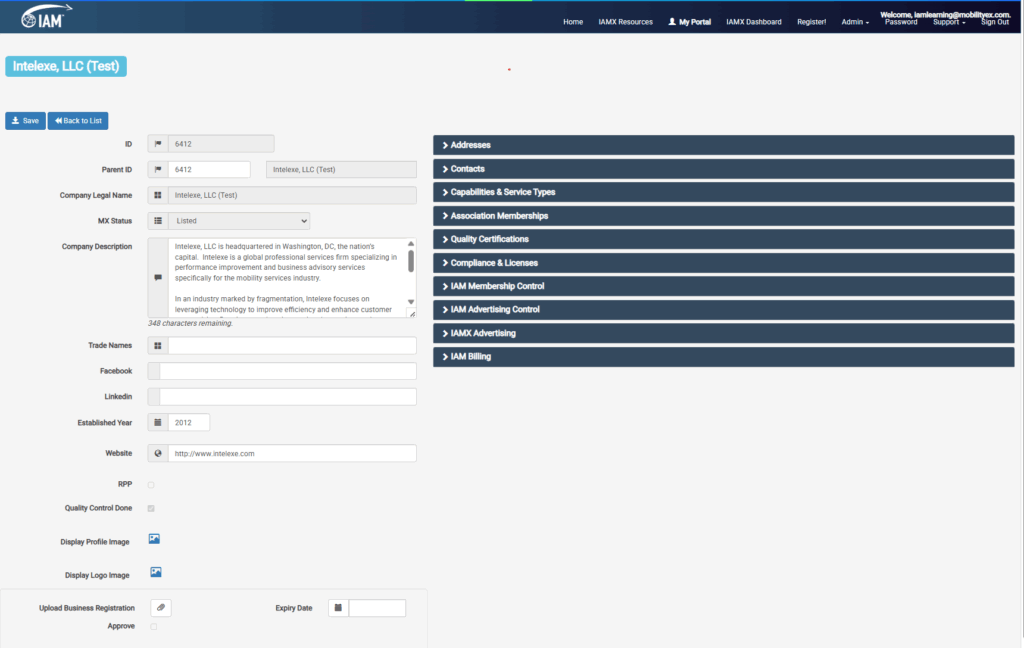
At the top left is the Company Legal Name. Beneath that are three buttons: "Save", "Back to List", and "Validate My Listing."
IAMX is a browser-based system, so most changes must be committed by pressing the Save button. Leaving the page without saving will cause all your changes to be lost.
The "Back to List" button will take you back to the list view where you started.
To apply for Validation, click "Validate My Listing." This will take you to the payment page. To learn about Validation, see Validation.
Updating Your Information
A guide to each editable field in your company profile.

This is your Service Provider ID — a unique number that identifies your company. This field cannot be modified.

If there is a Parent Hierarchy, the Parent Company ID will be displayed here. This can only be modified by your IAMX Content Manager.

This is the legal, registered name of your company. If you trade under a different name, that can be listed under Trade Names — our search will always find you by your legal name or any of your trade names. Once you save your listing, you will not be able to modify the Company Legal Name. Please ask your IAMX Content Manager for assistance if required. IAM Member companies must clear any name changes with the IAM Membership Department.

This is a display field controlled by IAMX that shows your current listing status. The possible status values are:
- Listed — The company profile has been obtained from public sources.
- Claimed — The listing has been claimed by the company and there is at least one authorized administrator with edit capabilities.
- Validation Underway — This company is in the process of applying for Validation.
- Validated — This company has completed the Validation process.
- Non-Operational — This company is no longer operational.
- Rejected — This listing is a duplicate or has been rejected for valid reasons.
- New — A listing registered directly by the company. Once reviewed and approved, it will become a Listed company.
You may enter a brief description of your company here. Your IAMX Content Manager may suggest edits. IAM reserves the right to edit descriptions to keep them in conformance with IAM standards. Company descriptions have a 1,000-character limit.

This is where you can enter alias names, DBAs, or trade names, separated by commas. These should be trade names of corporate entities directly associated with this listed company. Listing your trade names helps when partners are searching for you.
For example, if your legal name is "H&B Corporation" but you trade as "Harry and Bill's Moving Service," listing both means our search will find you by either name.

You may enter your Facebook link here. These are currently not displayed in the directory but will be in the future.

You may enter your LinkedIn link here. These are currently not displayed in the directory but will be in the future.

Enter the 4-digit year in which your business was established.

Enter your website URL, including the full address starting with https://www…

Logo & Profile Graphic
Showcase your brand in the IAMX directory with a company logo and profile image.
IAMX-Validated Members may display a company logo and a company profile graphic in their profile.
- Company Logo: 300 pixels wide × 150 pixels tall
- Company Profile Graphic: 1,400 pixels wide × 500 pixels tall
Please send your image files to content@mobilityex.com for assistance.
Address
Accurate address information enables geo-location search in the IAMX directory.
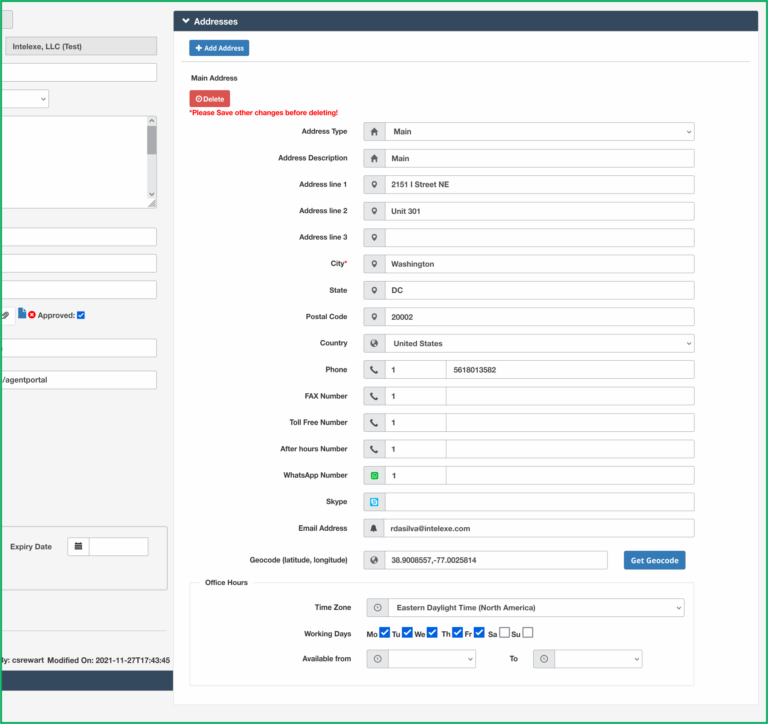
IAMX integrates with Google Maps to provide geo-location search. This requires that your Main address be accurately entered so that a geo-code can be assigned.
There can only be one "Main" address. As a rule, P.O. Boxes should not be used as the main address if possible.
You may add additional addresses for satellite facilities within a 50-mile radius of the Main address. Airport warehouses or separate staff facilities can be entered as "Branches" — be sure to select "Branch" in the Address Type field.
The "Mailing" address type is also available if your company prefers mail sent to a different address than your main location.

The "Country" field is a dropdown menu. Once saved, you will not be able to edit the Country field.
Selecting a country will populate the phone prefix. Do not enter a "+" or "00". For countries where a leading "0" is dialed for local calls, leave this out of the number entered in your profile.

Clicking "Get Geocode" decodes your address into longitude and latitude coordinates. This works for around 80% of addresses. If there is an issue, email content@mobilityex.com and the team will set it for you.
Branch Offices
Understanding how branch locations are defined in IAMX.
The ability to add additional addresses is intended to catalog satellite facilities in the same metro area as your main location — not to list all branch offices in other cities and states.
IAMX uses a rule of thumb based on a 50-mile radius and your intent to show your own facilities within the same metro area. Branches entered outside this scope will be removed.
Contacts
Managing staff listings, privacy settings, and user access.
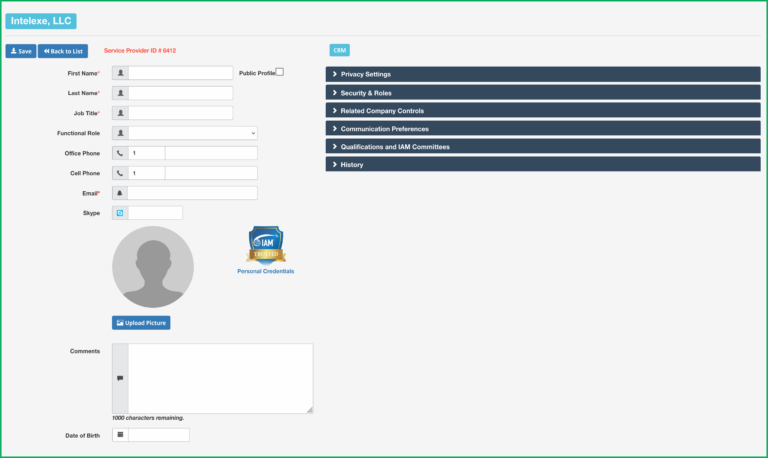
The country phone prefix is populated based on the country selected in the Address section and can be overwritten if necessary — for example, if your rate desk is based in a different country.
You may add as many contacts as you wish, but keep in mind that you do not want to clutter your Company Profile display. Be sure to enter each contact's title so partners can direct inquiries to the right person.
Use the same caution about deleting Contacts as with Addresses — save all your work before pressing the "Delete" button.
GDPR & Privacy Considerations
In the Contacts section, you can manage staff member listings to control visibility in the directory.
- To create a contact listing that is not displayed in the directory, uncheck the "Public Profile" field. This is useful for billing contacts who prefer not to be visible.
- By default, Contact Profiles are not displayed in the IAMX Directory. However, we strongly recommend publishing your contact profile — including a photo and contact information can encourage industry partners to reach out.
To make your profile public:
- Go to Privacy Settings in your Contact Profile.
- Change the consent setting as needed.
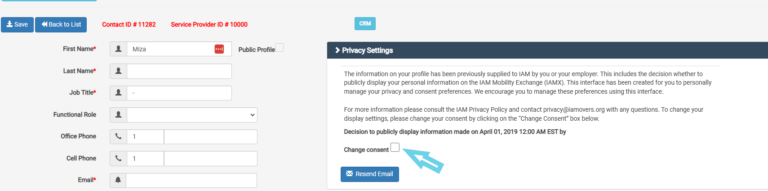
Adding New Contacts: Activating Users and Granting Admin Rights
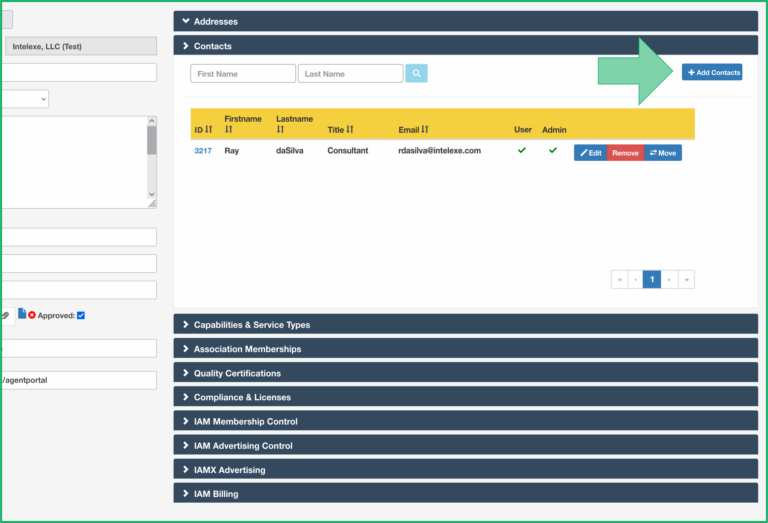
As the company Admin, you can:
- Add new Contacts.
- Grant User Access.
- Assign Admin Rights to other users.
Steps:
- Click "Activate User" to send an automatic email to the new contact, inviting them to set their password.
- If needed, click "Grant Admin" to provide full administrative rights.
Avoid Using Generic Email Addresses
We strongly discourage using generic email addresses (e.g., info@abc.com or rates@abc.com) for login purposes. These addresses are often shared by multiple individuals, making it difficult to track responsibility for edits and changes.
Capabilities & Service Types
Select the services and qualifications that accurately represent your company.
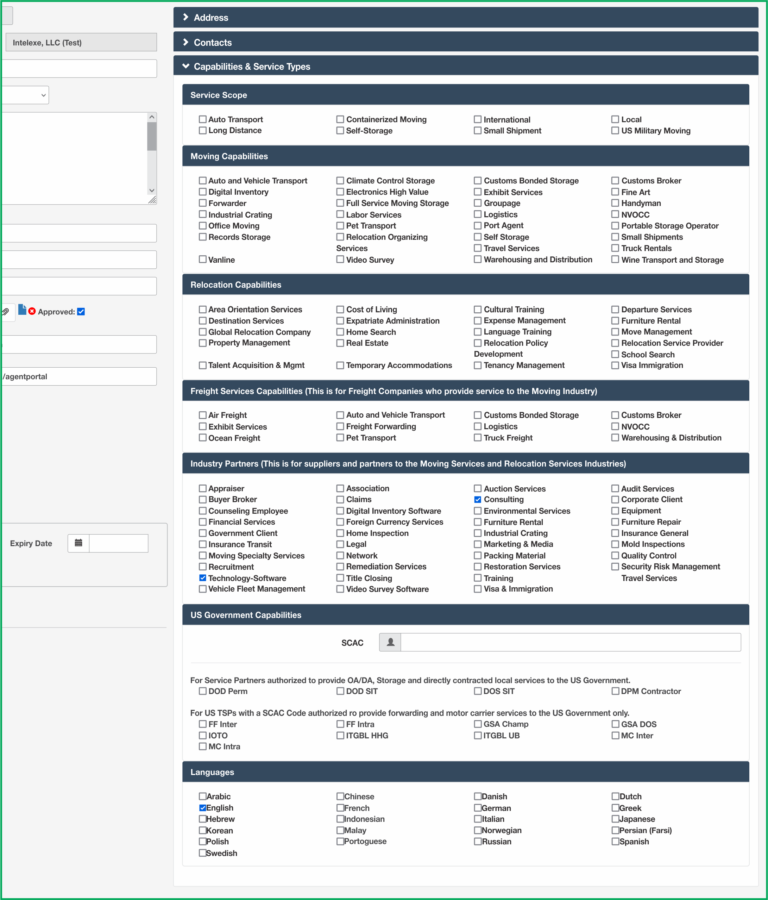
This section is where you check the various capabilities and services your company provides. Focus on your core competencies rather than checking every available option. If an important capability is missing, please write to content@mobilityex.com.
Moving Capabilities
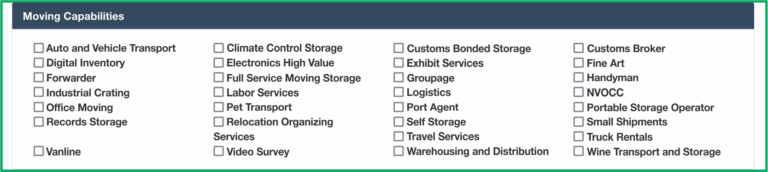
This section lists the typical capabilities associated with moving and storage companies.
Relocation Capabilities

These are capabilities usually associated with Relocation Management Companies, including global relocation firms that contract with major corporations to manage outsourced relocation programs. List only the core services your company specializes in and carries out in-house.
Industry Partners
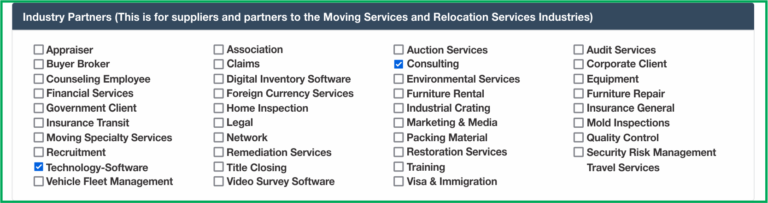
This section is for suppliers and service partners to the industry. List only the products and services your company focuses on as core competencies.
Freight Capabilities

This section is intended for freight companies and customs brokers that sell their services to the moving industry — not for full-service moving companies providing these services as a forwarder.
US Government Capabilities
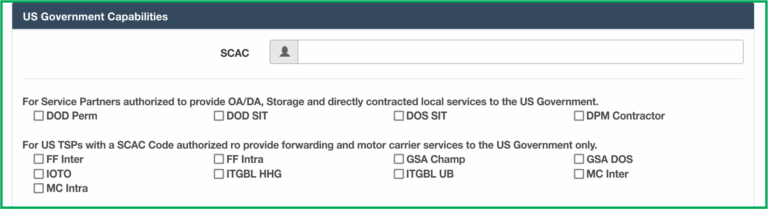
This section is for Transportation Service Providers (TSPs) that hold specific US Government approvals. In general, TSPs are forwarders or carriers with the following authorizations:
- DOD Perm Storage — Authorized by the Department of Defense to provide long-term storage services.
- DOD SIT — Authorized by the Department of Defense as an approved Storage In Transit facility.
- DPM Contractor — Authorized to provide Direct Procurement Services (Storage, Pack, Crate, and related services).
- FF Inter — Authorized as a Freight Forwarder Interstate; issued to US TSPs.
- FF Intra — Authorized as a Freight Forwarder within a state or certain states; issued to US TSPs.
- GSA CHAMP — Authorized by the Government Services Administration as a TSP for the Centralized Household Goods Traffic Management program.
- GSA DOS — Authorized as a TSP by the Department of State.
- ITGBL HHG — Authorized to provide International Thru Government Bill of Lading service for international HHG forwarding door-to-door.
- ITGBL UB — Authorized to provide International Thru Government Bill of Lading service for Unaccompanied Baggage forwarding.
- MC Intra — Authorized as a Motor Carrier within a state or specified states.
- MC Inter — Authorized as a Motor Carrier between states.
Languages
Check all languages your company is capable of providing service in. IAMX allows partners to search and filter by language capability, so list all that apply. If an important language is missing, let us know at content@mobilityex.com.
Affiliations & Memberships
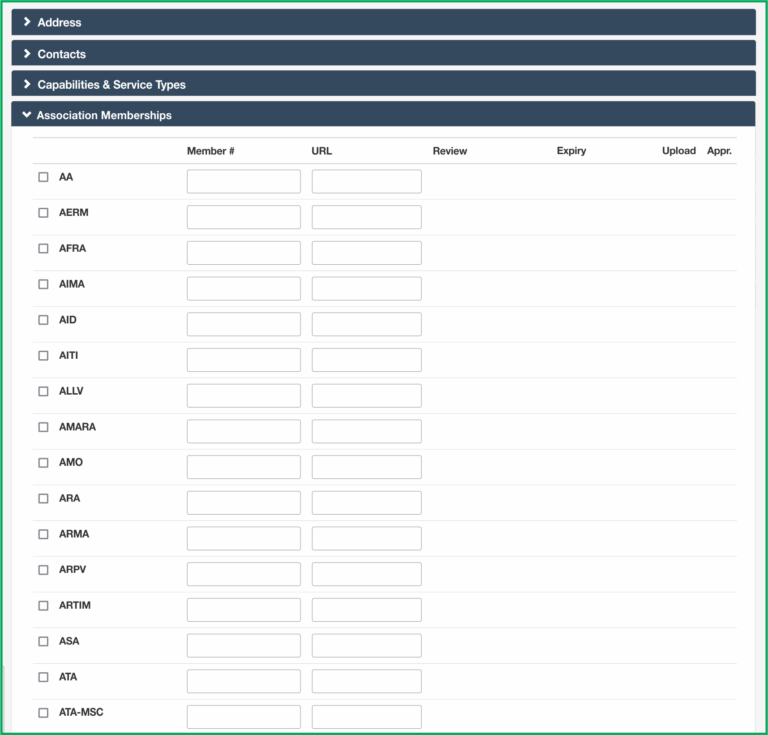
Membership in certain industry associations signals a commitment to a specific area of specialization. Check all memberships that are current for your company. Note that membership typically applies to the city where your membership is registered, not all branches, unless each is separately registered. Hover over any acronym to see the full association name.
Quality Certifications
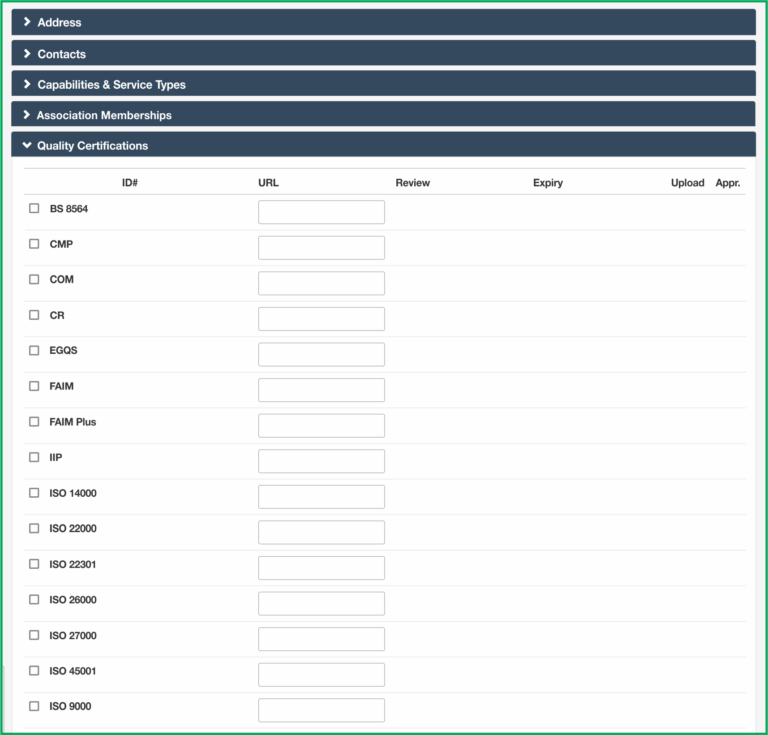
Check all standards and certifications that are current for your specific company. A certification held at the head office level does not automatically apply to all related companies or branches. Hover over any acronym to see the full certification name.
Compliance & Licenses
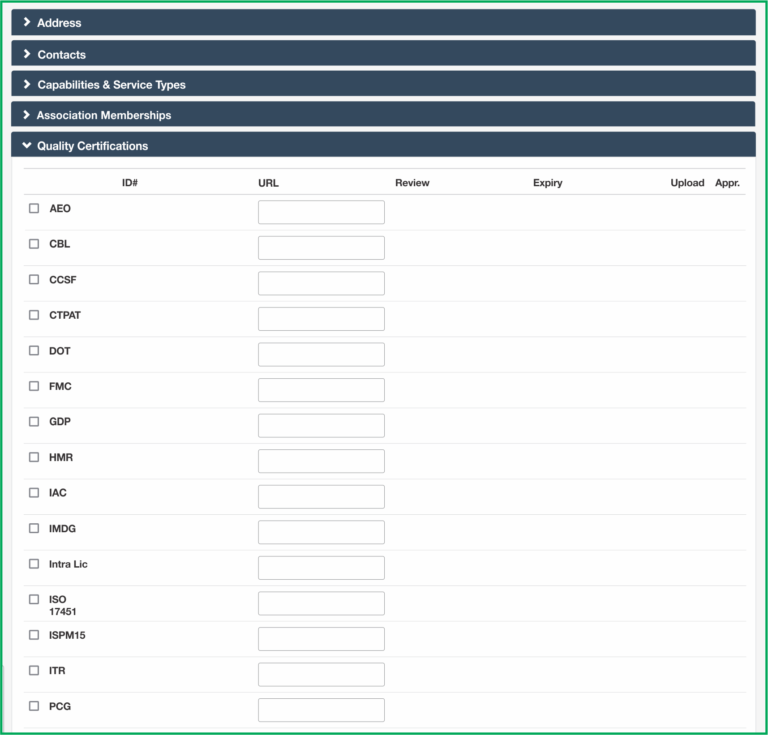
Check only the compliance qualifications that are current and have not expired for your company. Qualifications held at the head office level do not automatically extend to all branch offices unless each branch is also individually qualified. Hover over any abbreviation to see the full description.
Copying Your Company Profile
A fast way to create child records for related companies or branch offices.
If you do not have any related companies, you may skip this section.
If you have a related company to show as a "Child" of a "Parent" record, use the "Copy" function. Clicking "Copy" on the parent record will create a child record automatically linked with the Parent ID.

The following information is copied over automatically:
- Parent ID
- Company name and trade name
- Website
- Capabilities information
The following information is not copied, as it is assumed to be unique to each location:
- Address
- Contacts
- Memberships and quality certifications
This feature is particularly useful if IAMX has your main office listed but not your branches. Your assigned Content Manager will review new listings and may make suggestions to enhance your profile.
A Word About Validation
How Validation helps differentiate your company in the IAMX directory.
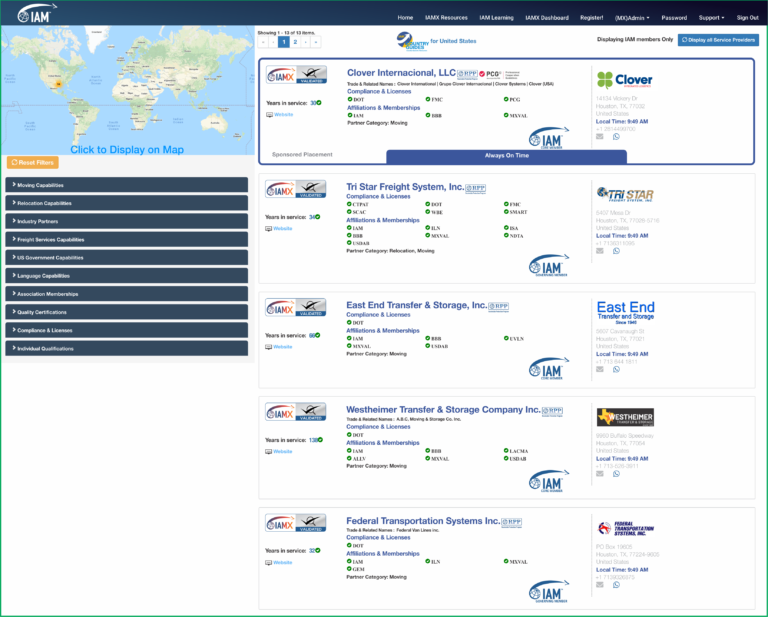
In a directory listing, IAMX must rely on public sources for information. Companies that have undergone Validation have submitted documentation to prove that their memberships and quality certifications are valid and current. Selecting a Validated company as a service partner means they have voluntarily committed to documenting their credentials.
Learn more about Validation →