

<details class="hsi-mobile-toc">
    <summary class="hsi-mobile-toc__summary">On this page</summary>
    <ul class="hsi-mobile-toc__list">
      <li class="hsi-mobile-toc__item"><a href="#sign-in" class="hsi-mobile-toc__link">Signing In</a></li>
      <li class="hsi-mobile-toc__item"><a href="#password-reset" class="hsi-mobile-toc__link">Password & Account Setup</a></li>
      <li class="hsi-mobile-toc__item"><a href="#admin-access" class="hsi-mobile-toc__link">Admin Access</a></li>
    </ul>
  </details>
Signing In
Access your company profile
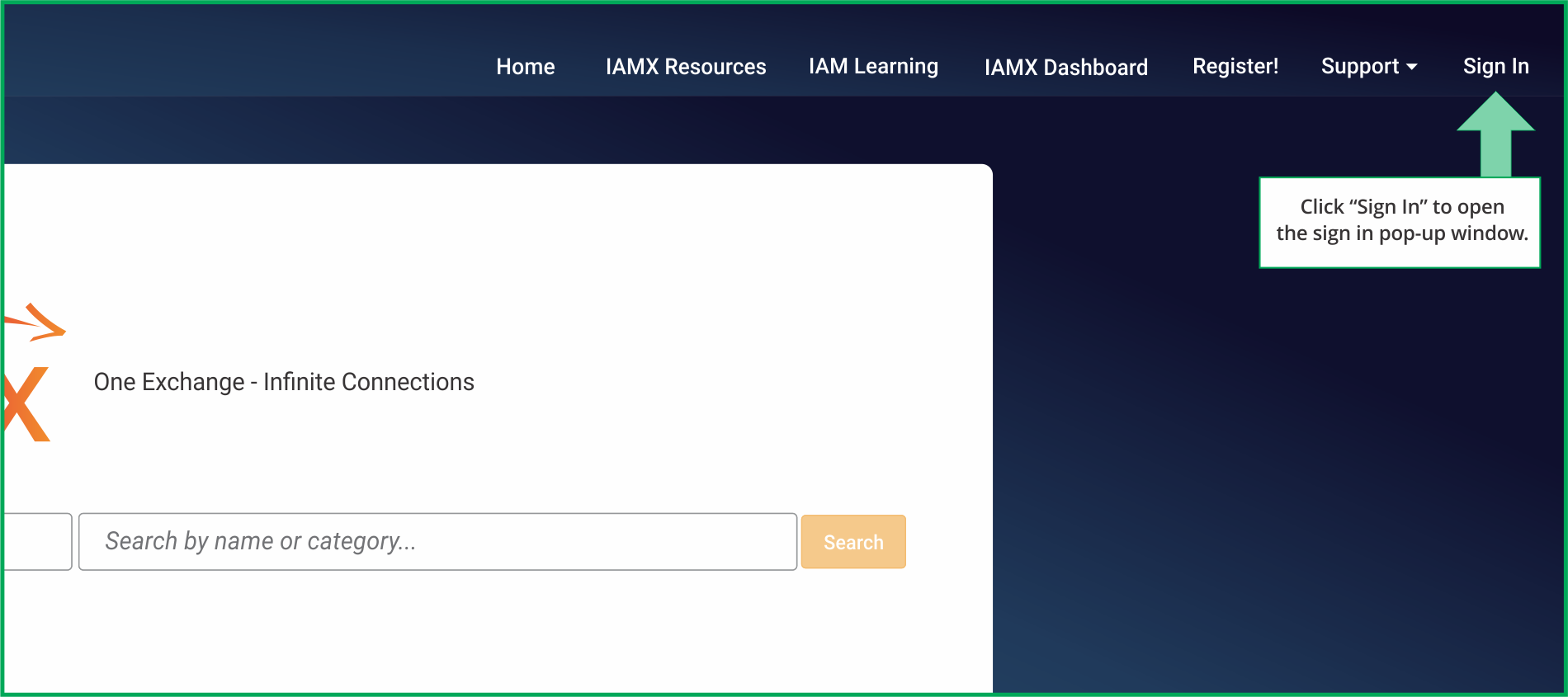
The first step is to sign in. Click the "Sign In" button at the top right of the home page. This will trigger a pop-up to appear.
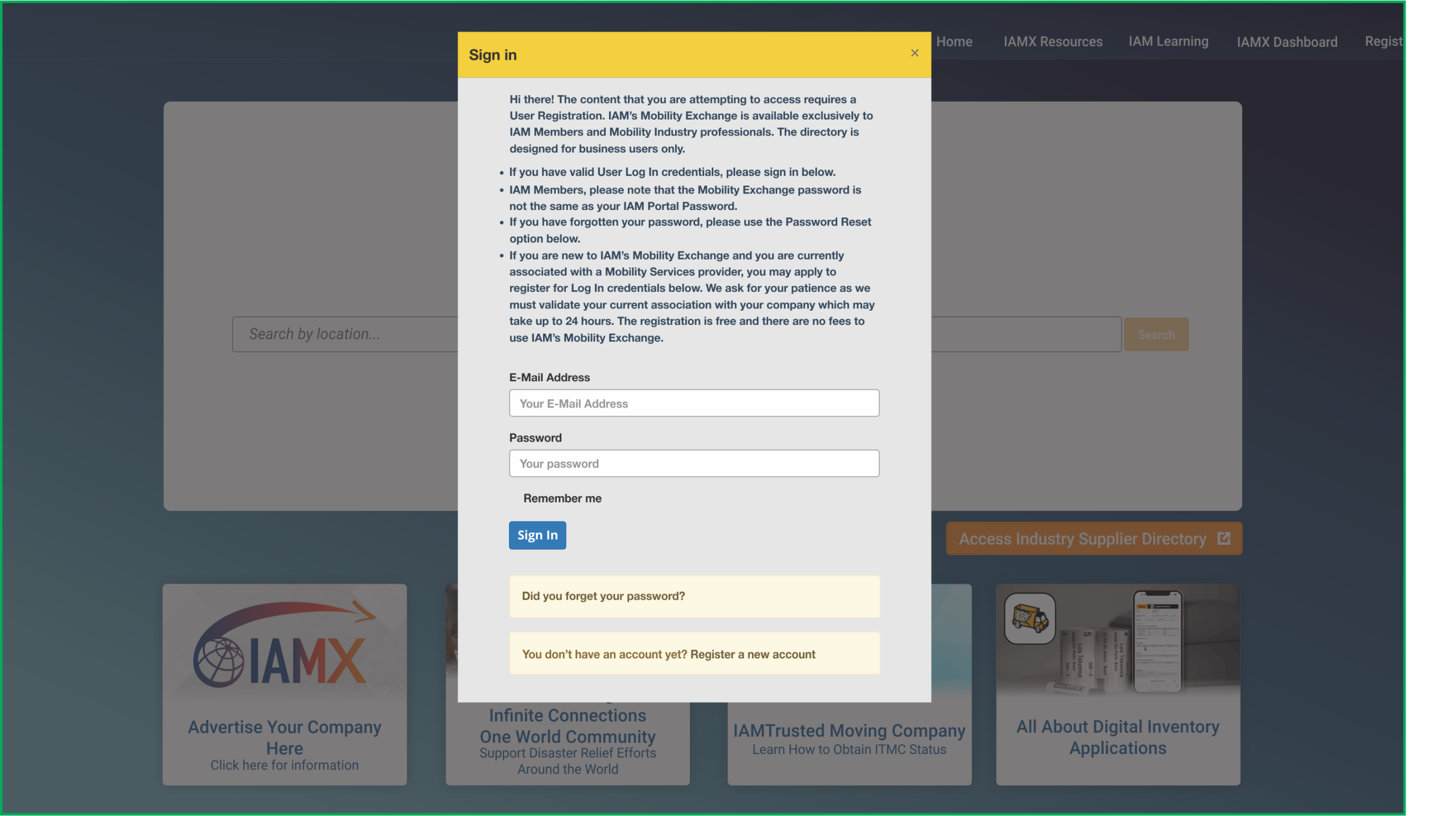
If you already have login credentials, enter them here. Your User Name is your email address.
Password & Account Setup
Forgot your password or need to register?
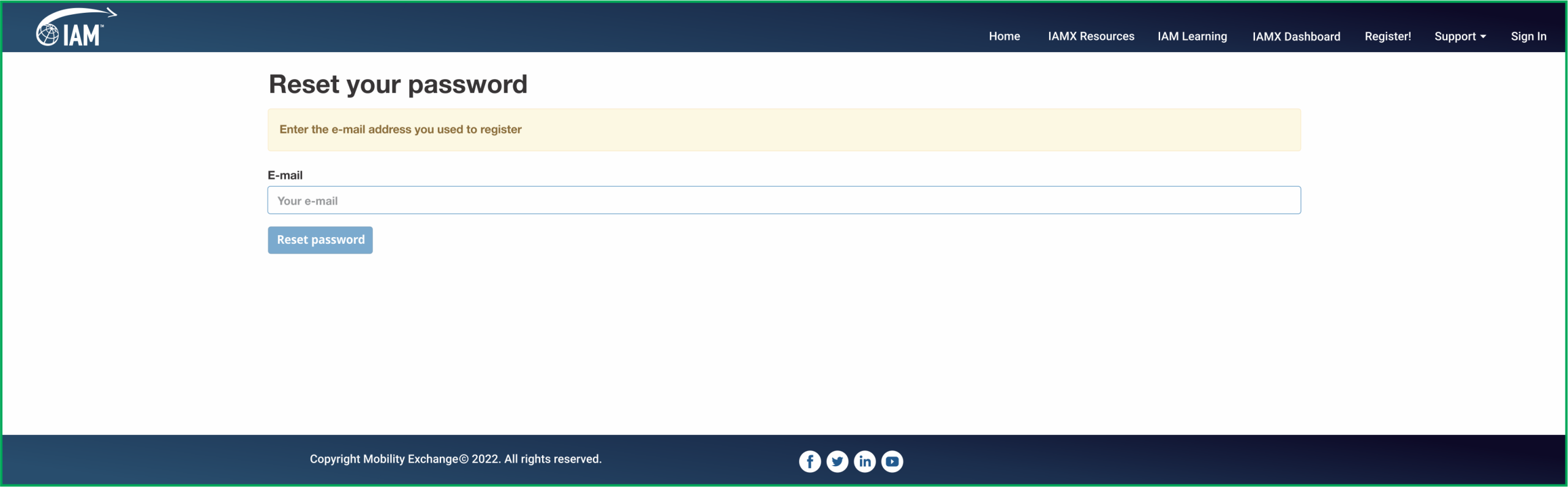
If you have forgotten your password, click the "Did you forget your password?" link below the Sign In button. You will be asked for your email address and a password reset email will be sent to you. For security reasons, the reset link is only active for 72 hours — please activate it as soon as you can. If the link expires, simply return to IAM Mobility Exchange and click the "Did you forget your password?" link again.
If you do not yet have login credentials, click the "Register a new account" link at the bottom of the sign-in pop-up.
Admin Access
Managing your company profile after signing in
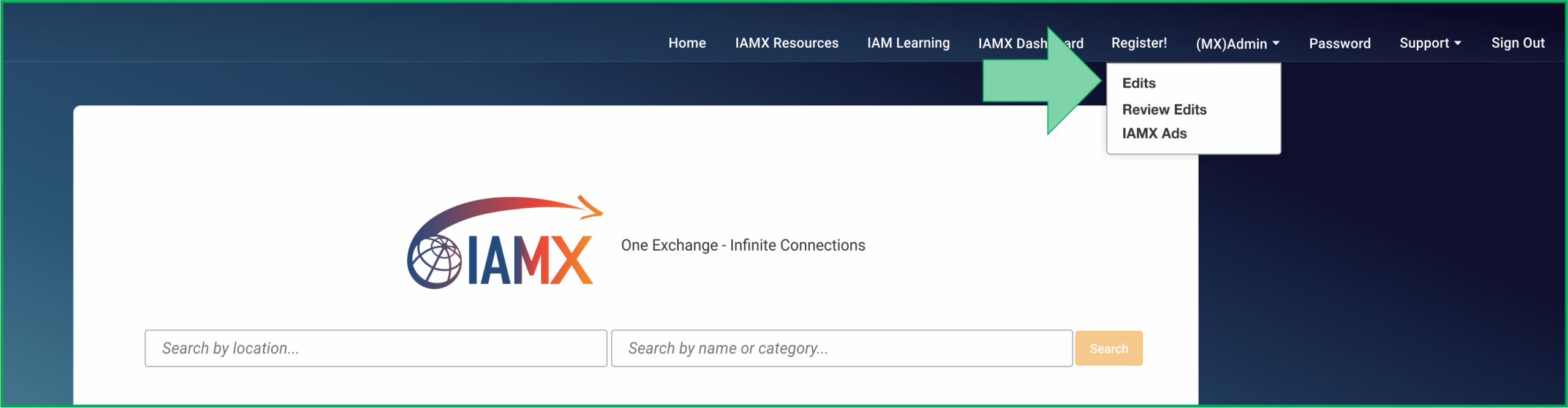
Once signed in, you will see a new "Admin" menu option at the top of the page. This menu is only available to users with Company Admin rights — only those with permission to edit company profiles and perform administrative tasks are granted Admin authority.
Click the Admin menu and select Edit from the drop-down menu.
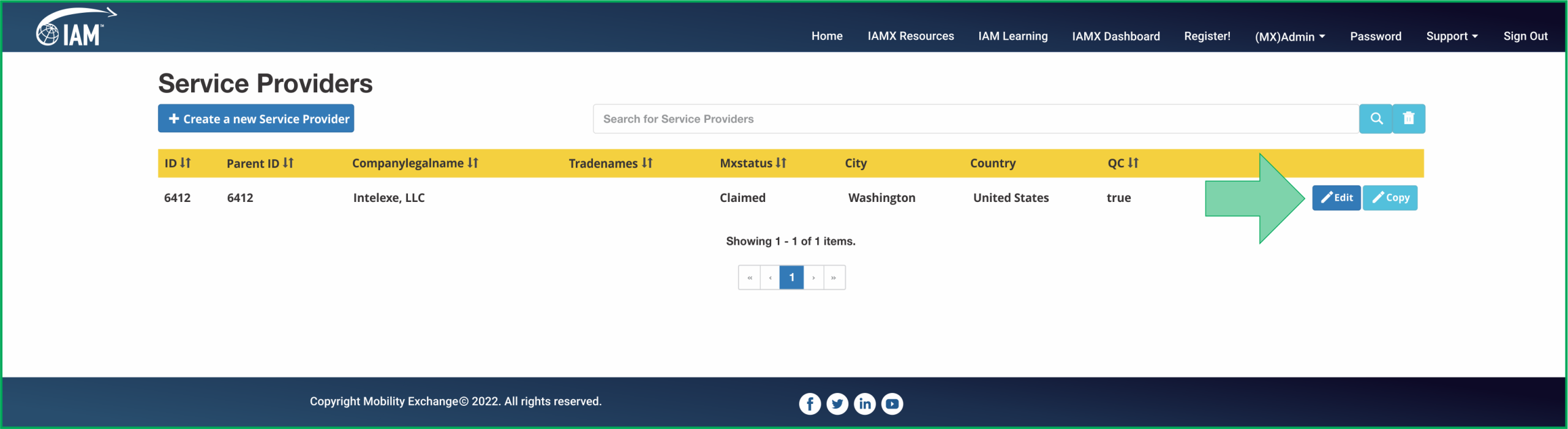
This is a list view of all Company Profiles available under your login credentials. If you have related companies, more than one profile may appear here.
If you have any questions or suggestions, please email support@mobilityex.com.