

<details class="ppp-mobile-toc">
  <summary class="ppp-mobile-toc__summary">On this page</summary>
  <nav class="ppp-mobile-toc__nav">
    <ul class="ppp-mobile-toc__list">
      <li class="ppp-mobile-toc__item"><a href="#make-visible" class="ppp-mobile-toc__link">Make Your Profile Visible</a></li>
      <li class="ppp-mobile-toc__item"><a href="#set-public" class="ppp-mobile-toc__link">How To Set Your Profile To Public</a></li>
    </ul>
  </nav>
</details>
Make Your Profile Visible In Search Results
Stay discoverable to colleagues and partners across the IAMX directory.

IAMX offers a powerful colleague search tool that lets you find and connect with professionals from organizations across the mobility industry. To make the most of this feature, set your contact profile to public so you remain visible in search results.
This is especially useful when meeting new contacts who may remember you but not your company affiliation. A public profile opens the door to meaningful connections, potential partnerships, and new business opportunities.
How To Set Your Profile To Public
Follow these steps to enable your public profile in IAMX.

Click the "Sign In" button at the top right of the home page. This will trigger a sign-in pop-up to appear.
If you do not have login credentials, please see Claiming Your Listing & Registering.
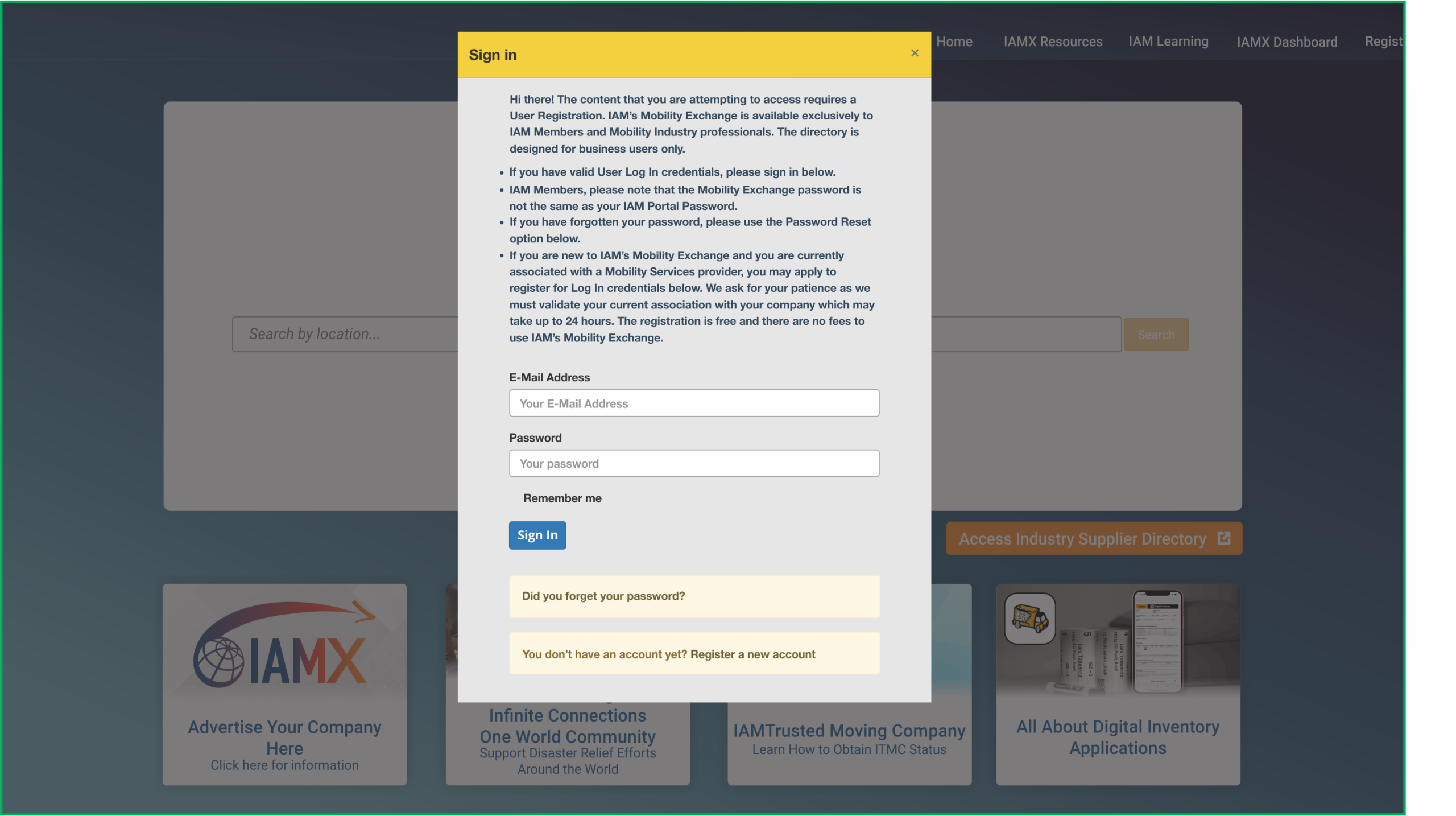
Enter your credentials to sign in. Your username is your email address. If you have forgotten your password, click the "Did you forget your password?" link below the Sign In button.

Enter your email address to receive a password reset link. The reset link is only active for 72 hours, so be sure to use it promptly. If the link expires, return to IAMX and click "Did you forget your password?" again.
If you do not yet have login credentials, click the "Register a new account" link at the bottom of the sign-in screen.

Once signed in, you will see a new "Admin" menu option in the navigation. Click Admin and select "Edit" from the dropdown.

You will see a list of the Company Profiles accessible under your login credentials. If you have related companies, more than one profile may appear here.

Open your Company Profile and click the "Contacts" tab.
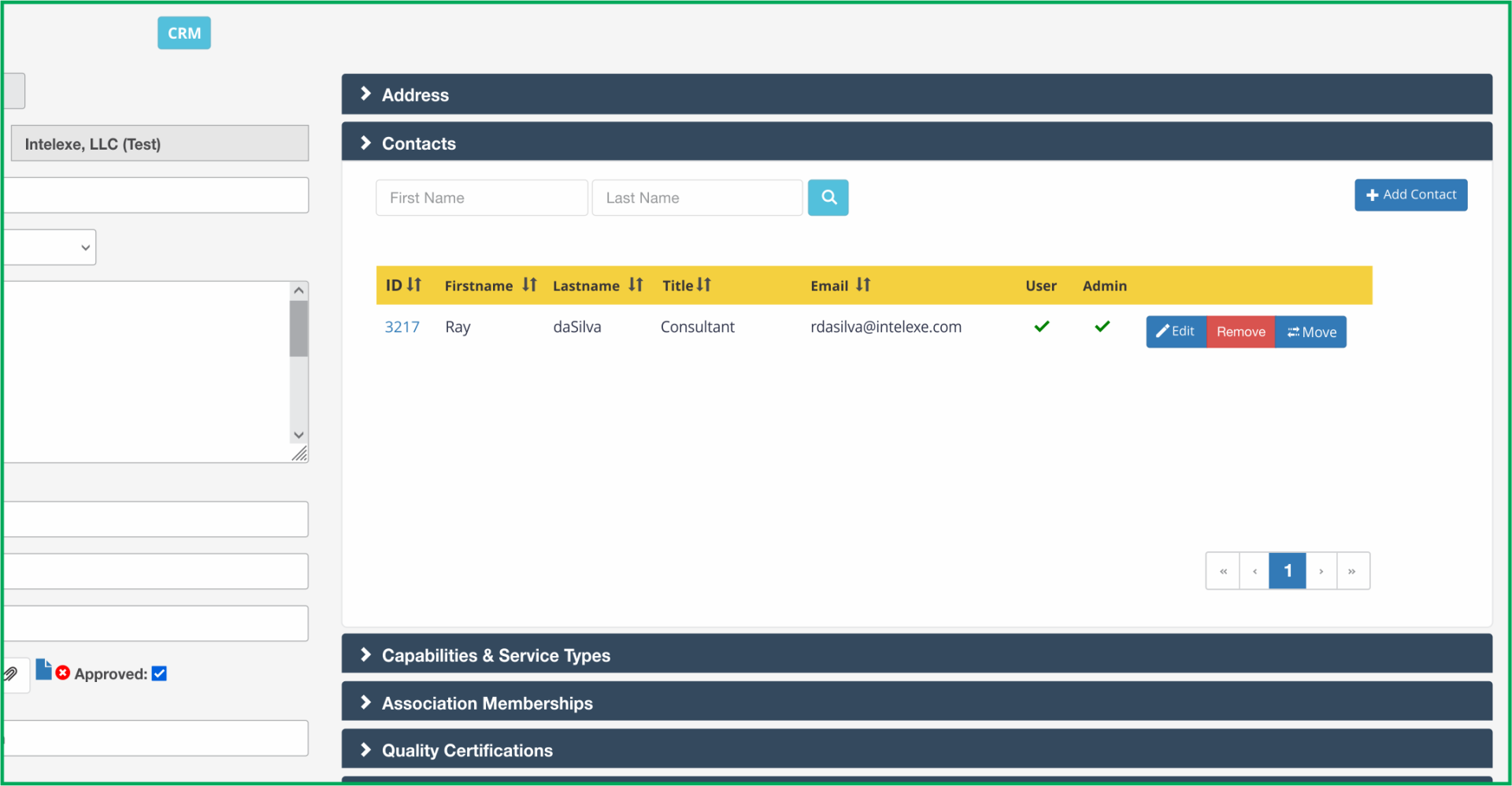
Click the "Edit" button next to your name to open your Contact Profile.

Click the "Privacy Setting" tab and check the box next to "Change consent" to make your profile public.
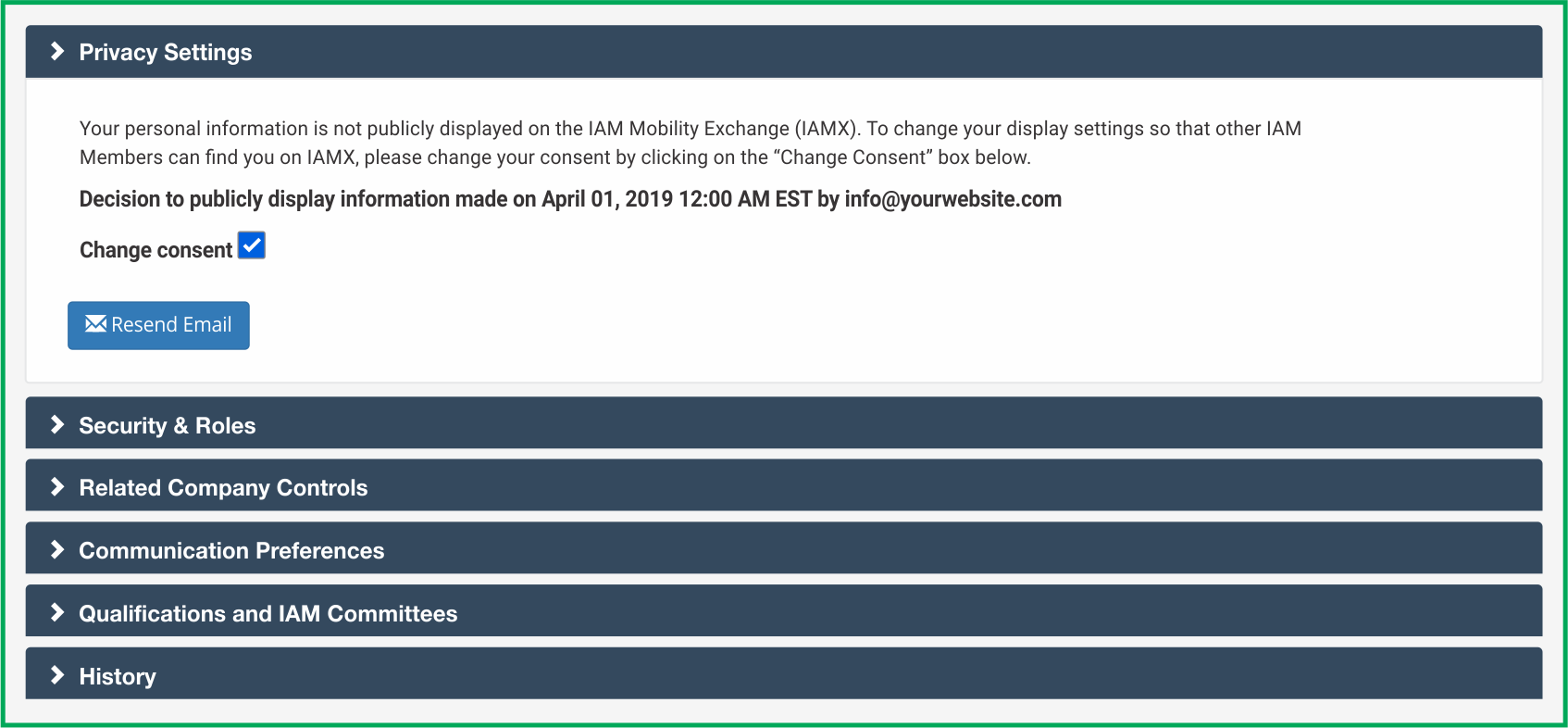
By default, your profile is set to private. Once you enable public display, you are visible to colleagues across the directory and open to greater connection and business opportunities.
If you have any questions or suggestions, please email support@mobilityex.com.
How to Edit Your Company Profile →